How to Go Live on TikTok: Step by Step on Your Phone and PC
Learn how to go live on TikTok on your phone or PC with TikTok LIVE Studio, the requirements, what to do if the LIVE option doesn't show up, and how to use LIVE to sell.

What will we see in this post

Going live on TikTok is one of the most direct ways to talk to your audience, answer questions and build a real-time connection. The format is also shaping buying decisions: according to a TikTok Shop study with NielsenIQ released in 2026, 91% of the platform’s shoppers surveyed agree that LIVE streams are the best way to clear up doubts and discover products before buying.
In this article, we’ll show you how to go live on TikTok on your phone and on your computer, the platform’s requirements, what to do when the option doesn’t show up and how to run streams that engage and can drive sales. First, here’s a quick summary:
| Question | Answer |
|---|---|
| What is TikTok LIVE? | It’s a live stream inside the app where creators and viewers interact in real time through comments, gifts and guests. |
| How do you go live on TikTok on your phone? | Tap the “+” button, choose LIVE, set a cover and title, and tap “Go LIVE”. |
| What do you need to go live on TikTok? | You must be at least 18 and have 1,000 followers (this can vary by region), according to the TikTok Help Center in November 2026. |
| Can you go live on TikTok from a PC? | Yes, with TikTok LIVE Studio, TikTok’s official free software for Windows 10 64-bit or later. |
| Can you make money on TikTok LIVE? | Yes, through virtual gifts, which turn into Diamonds, and through TikTok Shop sales during the stream. |
| How can you use LIVE to sell a digital product? | With free classes, Q&A sessions and launch streams that send viewers to your Hotmart checkout through the link in your bio. |
How to go live on TikTok on your phone: step by step
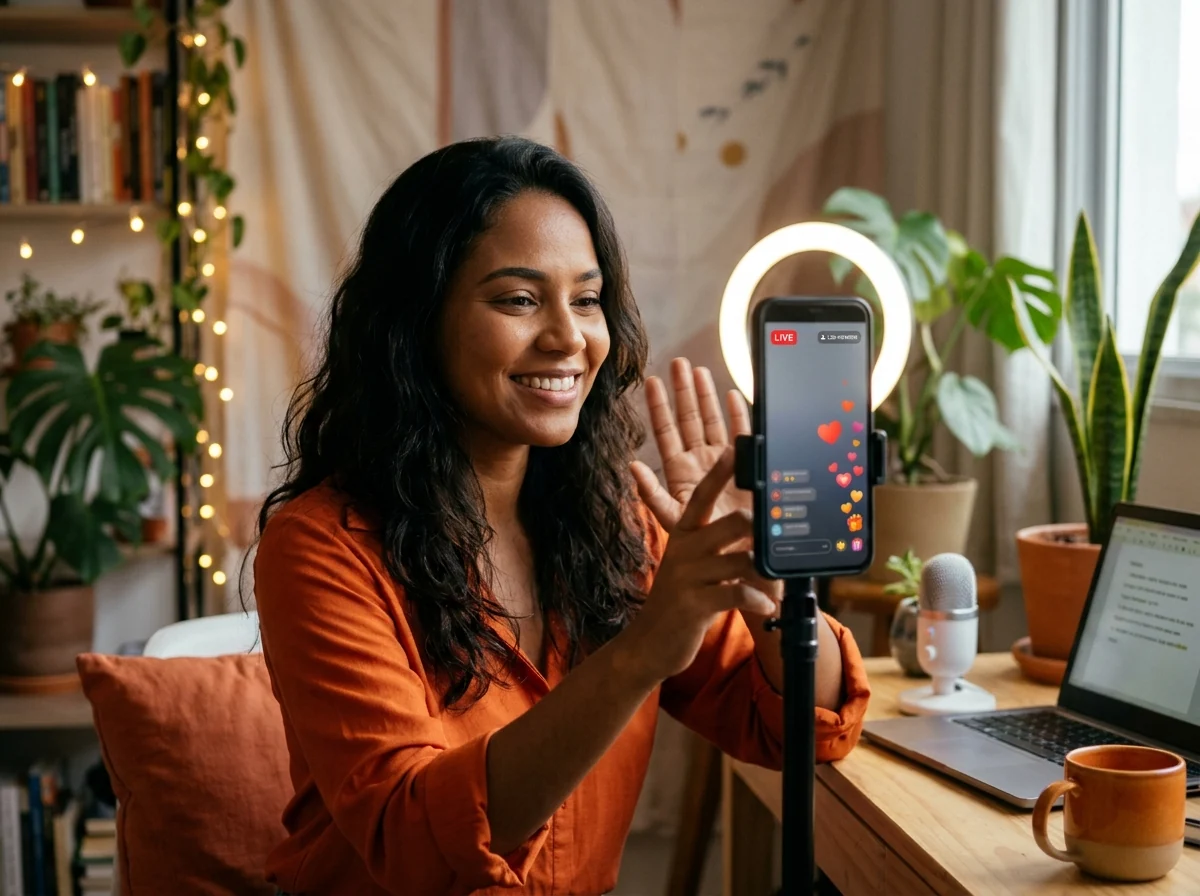
To go live on TikTok on your phone, open the app, tap the “+” button, select LIVE, choose a cover and title, and tap “Go LIVE”. The feature is available to accounts that meet the platform’s requirements.
Here are the six steps to get started:
- Open the app and tap the “+” button.
- Select LIVE.
- Choose a cover and title.
- Adjust your settings.
- Go LIVE and share the link.
- End the stream and review your stats.
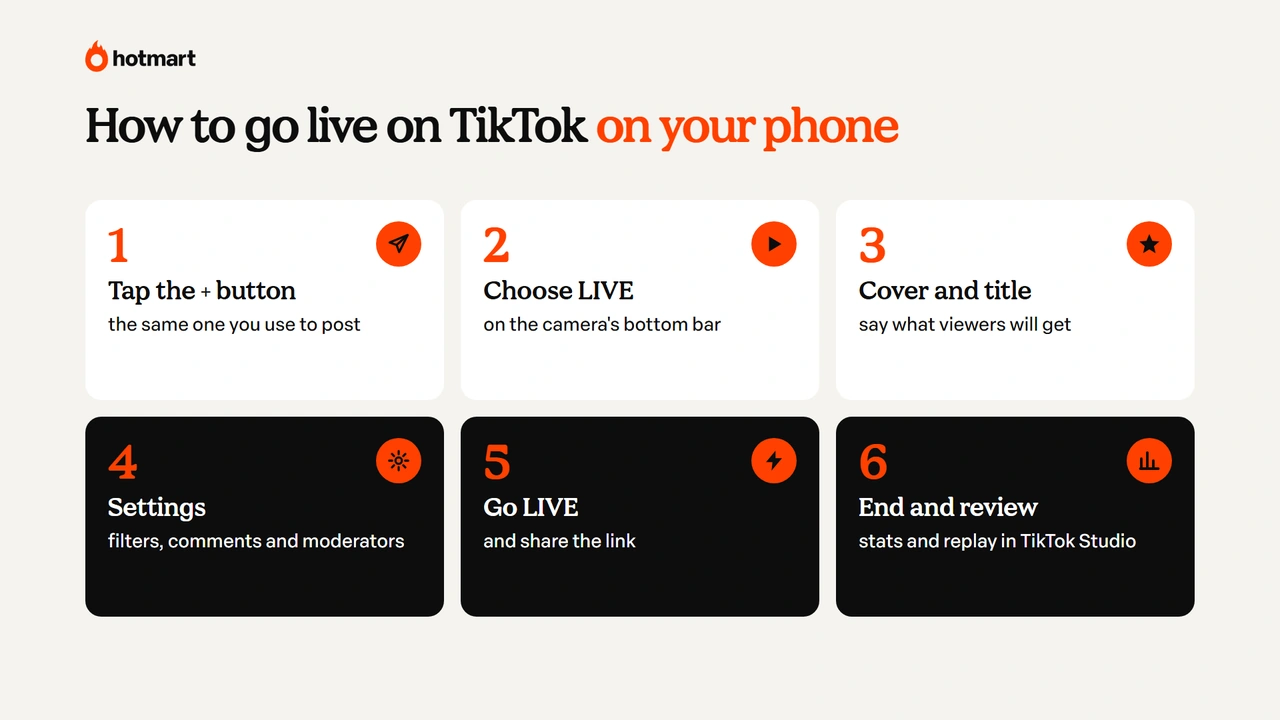
Now let’s look at each step in detail.
1. Open the app and tap the “+” button
Open the TikTok app and log in to the account you want to stream from.
At the bottom of the screen, tap the “+” button, the same one you use to post videos. It opens the camera and the creation options available for your profile.
2. Select LIVE
To start a LIVE on TikTok, swipe through the options at the bottom of the creation screen until you find LIVE.
Tap it to set up your stream. If it doesn’t appear, your account may not meet the age or follower requirements yet, or it may have a restriction. We’ll explain how to check this further down.
3. Choose a cover and title
Before you start, pick a sharp cover image and write a title that explains what the stream is about.
Instead of just “Live today”, for example, a nutritionist could write “Answering your questions about weekly meal prep”. That way, anyone who finds the stream knows what they’ll learn by joining.
4. Adjust your settings
Before going live, check the tools available to organize your stream.
You can adjust filters and effects, set up comments, block keywords and add moderators to help you keep up with the conversation. Depending on your account, you can also prepare to bring in guests.
5. Go LIVE and share the link
To start a live stream on TikTok, tap “Go LIVE”. You can also adjust your tools and safety settings during the stream.
In the first few seconds, introduce the topic and explain what viewers can expect. If you’re teaching a recipe, for example, say which steps you’ll show and invite viewers to send questions.
Use the share option to promote the stream on other social networks or in messaging apps and bring more people in.
6. End the stream and review your stats
To end the stream, tap the End LIVE button at the top of the screen, then End now.
Afterward, open your stream analytics in TikTok Studio: tap Profile, the ☰ menu and TikTok Studio, then the LIVE tab. The metrics include viewers, watch time, new followers and gifts received.
In the same tab, under LIVE recordings, you’ll find your replays, available to watch and download for 30 days. It’s worth rewatching the stream and saving clips that can become new videos.
What do you need to go live on TikTok?
To go live on TikTok, you need to meet the minimum age and follower requirements and follow the Community Guidelines. Some features, like receiving virtual gifts, have their own criteria.
According to the TikTok Help Center, the requirements to go live on TikTok in November 2026 are:
| Requirement | Rule |
|---|---|
| Minimum age to go live | 18 |
| Minimum age to receive gifts | 18 |
| Followers | 1,000 followers (can vary by region) |
| Account status | In good standing with the Community Guidelines |
| Availability | The feature must be available in your region |
Source: TikTok Help Center. Requirements checked in November 2026.
So how do you go live on TikTok without 1,000 followers? If the option isn’t available yet, the best path is to grow your audience with frequent videos, a clear niche and content that encourages interaction.
Avoid buying followers or using services that promise to unlock LIVE. These shortcuts don’t guarantee access to LIVE and can hurt your account.
Why can’t I go live on TikTok?
In most cases, the LIVE option doesn’t show up because the account doesn’t meet the age or follower requirements yet, or has a restriction related to the platform’s rules.
If you can’t start a stream, check these points:
- Registered age: make sure your account meets the minimum age to go live.
- Follower count: confirm you’ve reached the threshold for your region.
- App version: update TikTok to see if the feature appears.
- Account status: check your notifications for any Community Guidelines violations.
- Temporary restrictions: see whether there’s a suspension related to LIVE.
If you meet the requirements and still can’t access the feature, report the problem in the app, under settings and support. In short: to unlock TikTok LIVE, your account has to meet the age, follower and guideline requirements, and there are no shortcuts.
How to go live on TikTok on PC
To go live on TikTok on PC, you can use TikTok LIVE Studio, the platform’s official free software for streaming from a computer. It lets you set up your camera, microphone, screen sharing and other visual elements.
LIVE Studio is especially useful if you want to stream games, teach classes or use multiple video sources.
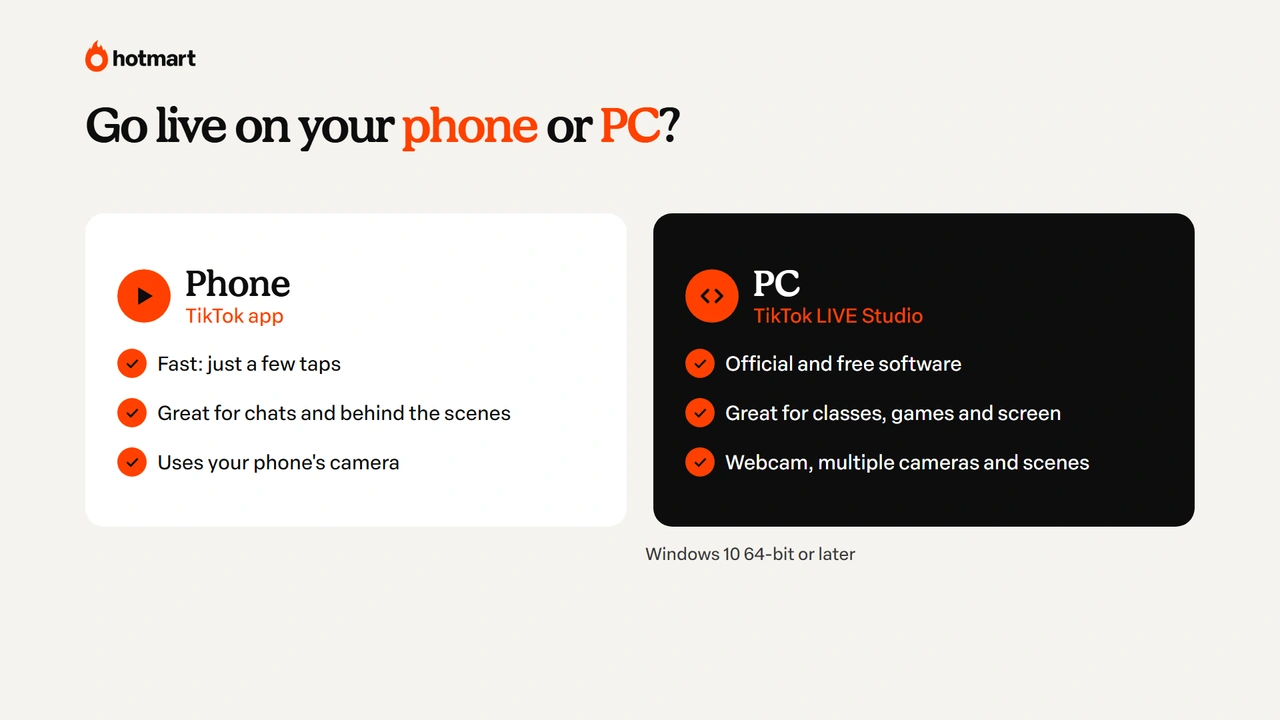
Here’s the step by step:
- Go to TikTok LIVE Studio: visit the official download page and check whether your account has access to the tool.
- Install the software: download the version for Windows 10 64-bit or later and follow the installation instructions.
- Log in: connect the same TikTok profile you’ll use for the stream.
- Set up your sources: add your camera, microphone, screen capture or a program window.
- Test your stream: check the audio volume, image quality and connection stability.
- Go LIVE: add the title and any other required details, then start streaming.
According to the official TikTok LIVE Studio page (November 2026), your computer needs at least an Intel Core i3 9th gen or AMD Ryzen 5 3000 series processor, an NVIDIA GeForce GTX 10 series or AMD Radeon graphics card, 8 GB of memory, 1 GB of free storage and DirectX 11. Gaming streams need more: an Intel Core i5 11th gen or AMD Ryzen 5 5000 series processor and an NVIDIA RTX 30 series or AMD RX 6000 series card.
For simpler streams, like classes with screen sharing, a webcam and a microphone are enough. Gaming or multi-camera streams require a more powerful computer and a stable connection.
How to go live with guests on TikTok
TikTok lets you invite other creators to join your live stream, with features like co-hosting and multi-guest sessions.
To go live with guests on TikTok, start your stream and tap the Guests button at the bottom of the screen. Then tap Invite and select the creators or friends who’ll join. Viewers can also request to join, and you approve them by tapping Accept.
Once the invite is accepted, the guest joins with video or audio only. In the Guests settings, you choose the screen layout: Panel, which keeps you in the spotlight, or Grid, which gives guests more space.
This format works great for interviews, debates and collaborative classes. A digital marketing expert, for example, could invite a sales professional to talk about conversion strategies.
Besides bringing different perspectives, collaborative streams can introduce your content to your guest’s followers.
Can you make money on TikTok LIVE?
Yes, you can make money on TikTok LIVE, mainly through virtual gifts sent by viewers and through sales during TikTok Shop streams. Each option has its own rules and criteria.
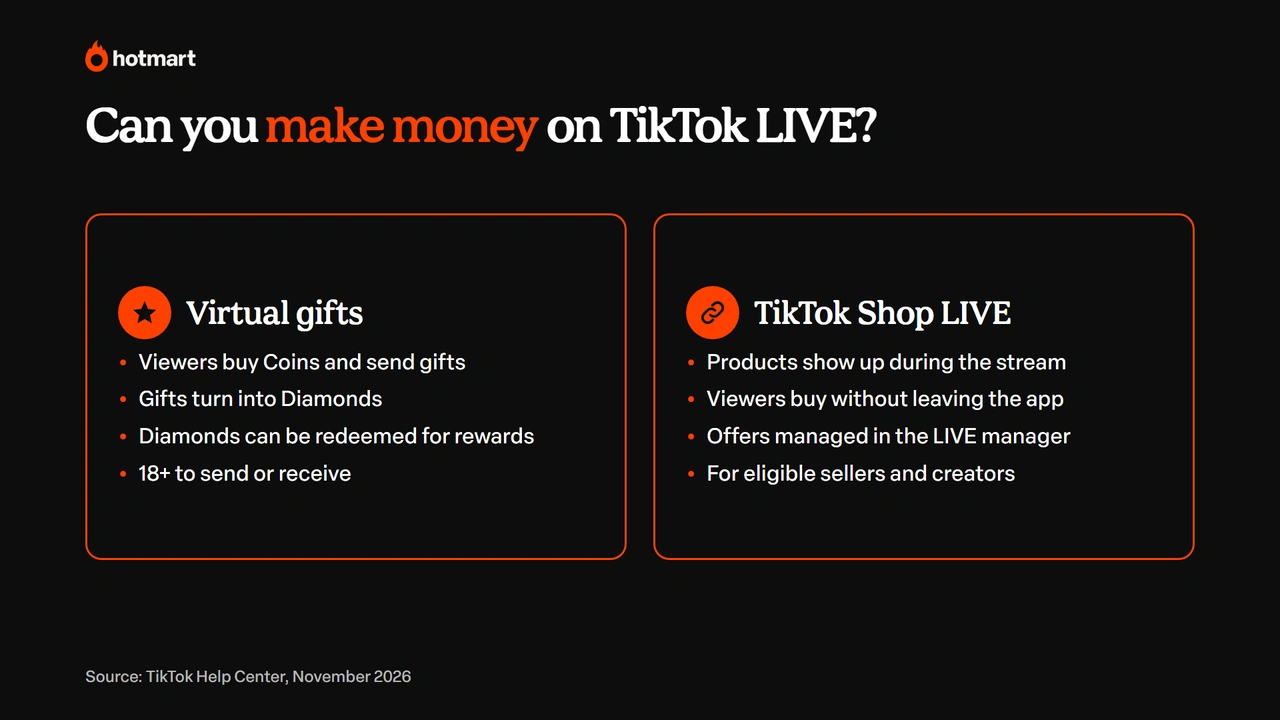
Virtual gifts are bought by viewers with Coins and sent during the stream. On the creator’s account, they turn into Diamonds, which can be redeemed for rewards according to TikTok’s rules. You must be at least 18 to send or receive gifts.
TikTok Shop, on the other hand, lets eligible sellers and creators showcase products during streams and offer a shopping experience built into the app.
To go live on TikTok Shop, you need access to the shop’s selling features, then select eligible products and add them to your stream. Sellers manage these offers in the TikTok Shop LIVE manager, in their seller dashboard. TikTok Shop isn’t available in every country.
The TikTok Shop and NielsenIQ study released in 2026 also found that, among people who have already bought on TikTok Shop, 67% use LIVE streams to better understand products.
Want to explore other ways to monetize? Check out our article on how to make money on TikTok.
Tips for a successful TikTok LIVE
A successful TikTok LIVE starts before you hit the start button. Planning your content, interacting with viewers and reviewing your results are the practices that most improve the experience for your audience.
The tips below are split into three moments: before, during and after your LIVE.
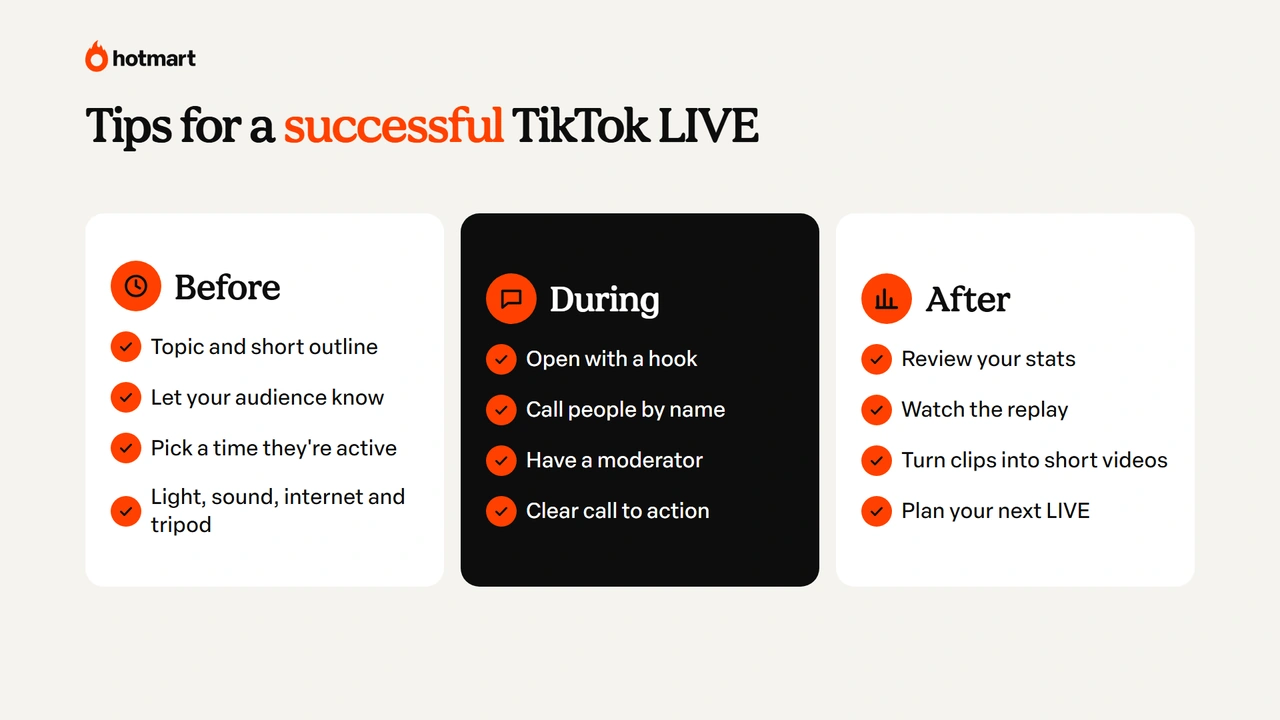
Before your LIVE
- Pick a topic and prepare a short outline: organize the main points so you stay focused. An English teacher could split the stream into explanation, exercises and questions.
- Let your audience know in advance: post videos and Stories with the day, time and topic of the stream.
- Choose a strategic time: check your account analytics and the best times to post on TikTok to see when your followers are most active.
- Take care of your setup: choose a well-lit space, test your microphone, check your internet and use a tripod to keep your phone steady.
During your LIVE
- Open with a hook: explain in the first few seconds what viewers will learn or see.
- Engage with people: greet participants by name and answer questions to make the conversation feel personal.
- Use moderation: when possible, have someone organize comments and prevent interruptions.
- Include a call to action: invite viewers to follow your profile, send questions or check out related content.
After your LIVE
- Review your stats: look at how many people joined, how long they stayed and which moments sparked the most interest.
- Repurpose the best moments: turn answers, demos and key takeaways into short videos to reach people who missed the stream.
With this routine, every LIVE becomes a lesson for the next one.
How to use TikTok LIVE to sell a digital product
TikTok LIVE helps people who sell online courses, mentoring programs and ebooks show their expertise, answer questions and spark interest in their digital products.
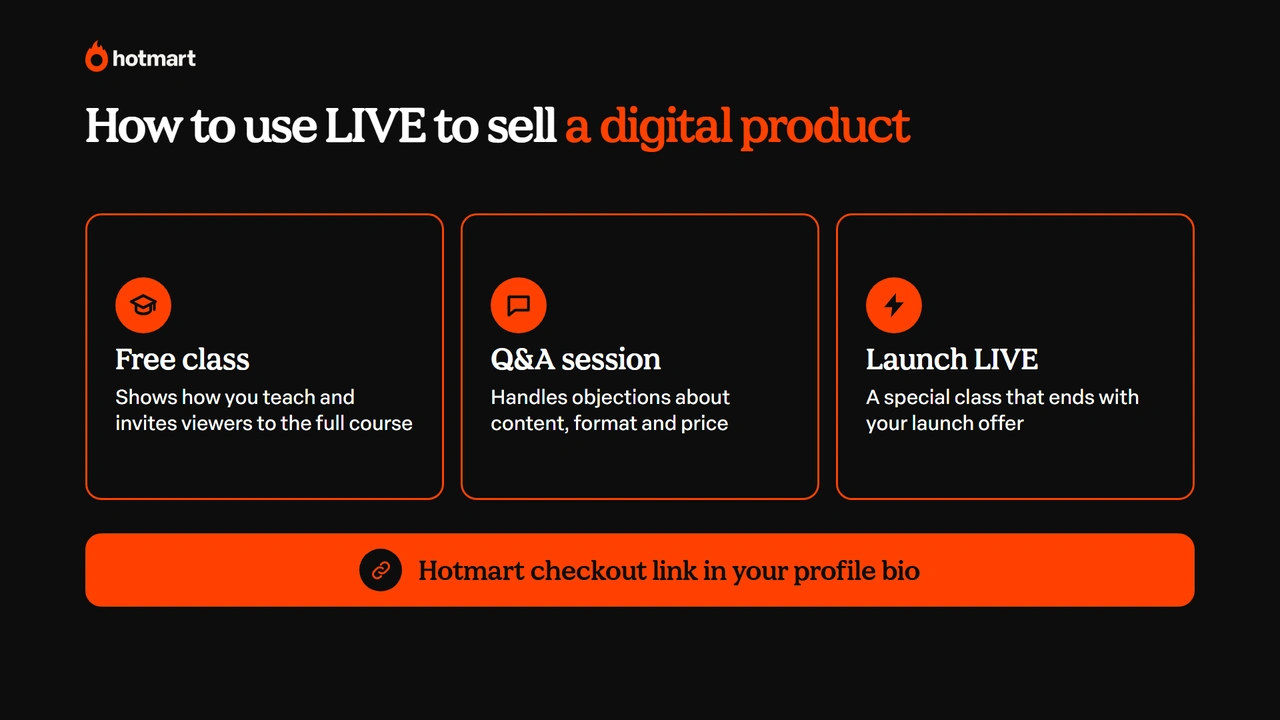
One option is to offer a free class on a topic in your niche. An English teacher, for example, could teach a 30-minute live class and, at the end, invite viewers to the full course through the link in her bio. That way, people get to know your teaching style and understand what they’ll learn in the full program.
Another option is to host a Q&A session to answer questions about the content, format and benefits of a mentoring program. LIVE streams can also be part of a product launch, with a special class followed by a new offer.
To turn your LIVE audience into sales, Hotmart offers the full structure: a members area to host your classes and a checkout to sell, with the link in your TikTok bio.
This way, your TikTok LIVE becomes a space for building relationships and showing your expertise, while Hotmart takes care of selling and delivering your digital product.
Ready to go live for the first time?
Now that you know how to go live on TikTok, the next step is to check whether your account meets the requirements and choose the format that best fits your content.
As we’ve seen, you can stream straight from your phone or use TikTok LIVE Studio for productions on your computer. Either way, planning your topic, taking care of stream quality and engaging with your audience make all the difference.
LIVE streams can also open up ways to monetize, whether through virtual gifts, TikTok Shop sales or promoting digital products.
And if you have knowledge to share, Hotmart gives you the tools to turn it into a course, ebook or mentoring program and start selling. You bring the talent, we bring the tools.
TikTok LIVE FAQ
Still have questions? Here are answers to the most common questions about how to go live on TikTok.
How old do you have to be to go live on TikTok?
You must be at least 18 to go live on TikTok, according to the platform's Help Center. Besides the age requirement, your account needs 1,000 followers (this can vary by region) and must follow the Community Guidelines.
How much does TikTok pay for a LIVE?
TikTok doesn't pay a fixed amount per stream. Eligible creators can receive virtual gifts from viewers and collect Diamonds, which can be redeemed for rewards according to the platform's rules. Earnings depend on viewer participation and monetization conditions.
Can you go live on TikTok Lite?
TikTok Lite is a lighter version of the app, with features that may be limited compared to the main TikTok app. To stream, it's best to use the main TikTok app, as long as your account meets the requirements to access LIVE.
How do you watch a TikTok LIVE replay?
To watch a TikTok LIVE replay, tap Profile, open the ☰ menu, go to TikTok Studio, tap LIVE and then LIVE recordings. Replays are available for 30 days, and you can watch, download, clip or delete each recording.