
What is a sitemap? What it’s for and how to create and submit yours to Google
A complete guide to sitemaps: what they are, what they're for, the types (XML, HTML, image, video, news, index and hreflang), when Google says you need one, limits and tags, how to create one on WordPress, Wix, Shopify and Google Sites, how to submit it to Search Console and Bing and how to fix report errors.

What will we see in this post

You publish new content, wait a few days and it simply doesn’t show up on Google? 🔎 One of the first things to check is your sitemap, the file that lists the pages on your site and tells search engines what’s there, what has changed and where to find each address.
In this guide, you’ll learn what a sitemap is, the different types, when you need one (and when Google says you don’t), how to create one on WordPress, Wix, Shopify and Google Sites, and how to submit it to Search Console and Bing. At the end, we show you how to read the report, fix the most common errors and what changes with AI search. 🚀
| Question | Quick answer |
|---|---|
| What is a sitemap? | A file, usually XML, that lists a site’s URLs to help search engines crawl it |
| Does every site need a sitemap? | No. Google says small sites (about 500 pages or fewer) with good internal linking may not need one |
| What is the sitemap size limit? | 50,000 URLs or 50 MB uncompressed per file; beyond that, use a sitemap index |
| How do you submit a sitemap to Google? | In Google Search Console, under Sitemaps, or with a “Sitemap:” line in robots.txt |
| Does a sitemap guarantee indexing? | No. It helps Google discover your URLs, but it doesn’t guarantee they’ll all be indexed |
What is a sitemap?
A sitemap is a file where you tell search engines which pages, videos, images and other files exist on your site and how they relate to each other. According to the Google Search Central documentation, search engines like Google read this file to crawl your site more efficiently and understand which URLs you consider important.
The most common format is the XML sitemap, which follows the open Sitemap 0.90 protocol, documented at sitemaps.org and supported by Google and Bing. It usually sits at the root of the domain, at an address like yoursite.com/sitemap.xml, and it’s read by bots, not people.
What is a sitemap used for?
A sitemap is used to help search engines discover the URLs on your site, know when each one was updated and understand media details, such as videos and images. It’s a piece of technical SEO, and it’s most useful on large sites, new sites or sites with few links.
The main uses of a sitemap are:
- page discovery: the crawler finds URLs that aren’t well connected through internal links;
- update signal: the last modified date (
lastmod) shows which pages changed and deserve a new crawl; - media information: image, video and news data go into dedicated sitemap extensions;
- language versions: the sitemap can point to the translations of each page;
- diagnostics: the Search Console Sitemaps report shows which submitted URLs were indexed and which weren’t.
Google itself repeats one warning: a sitemap helps with discovery, but it doesn’t guarantee that every URL will be crawled and indexed. Whether a page shows up, and in what position, depends on the quality of the content and on the SEO practices for new websites and established ones alike.
XML sitemap vs. HTML sitemap: what’s the difference?
The difference between an XML sitemap and an HTML sitemap is who reads the file. The XML sitemap is made for search engine crawlers and stays out of the site’s navigation. The HTML sitemap is a regular page, made for people, with organized links to the sections of the site, similar to the “site map” you see in the footer of large websites.
| XML sitemap | HTML sitemap | |
|---|---|---|
| Who it’s for | Search engine crawlers (Googlebot, Bingbot) | Site visitors |
| Format | .xml file with standardized tags | Web page with links |
| Where it lives | yoursite.com/sitemap.xml (or similar) |
A page on the site, linked in the footer |
| Submitted to Search Console? | Yes | No |
| Main use | Crawling and indexing | Navigation and internal links |
In SEO, “sitemap” almost always means the XML one. An HTML sitemap still helps on very large portals and stores, but it doesn’t replace a good menu or solid internal linking.
What are the types of sitemaps?
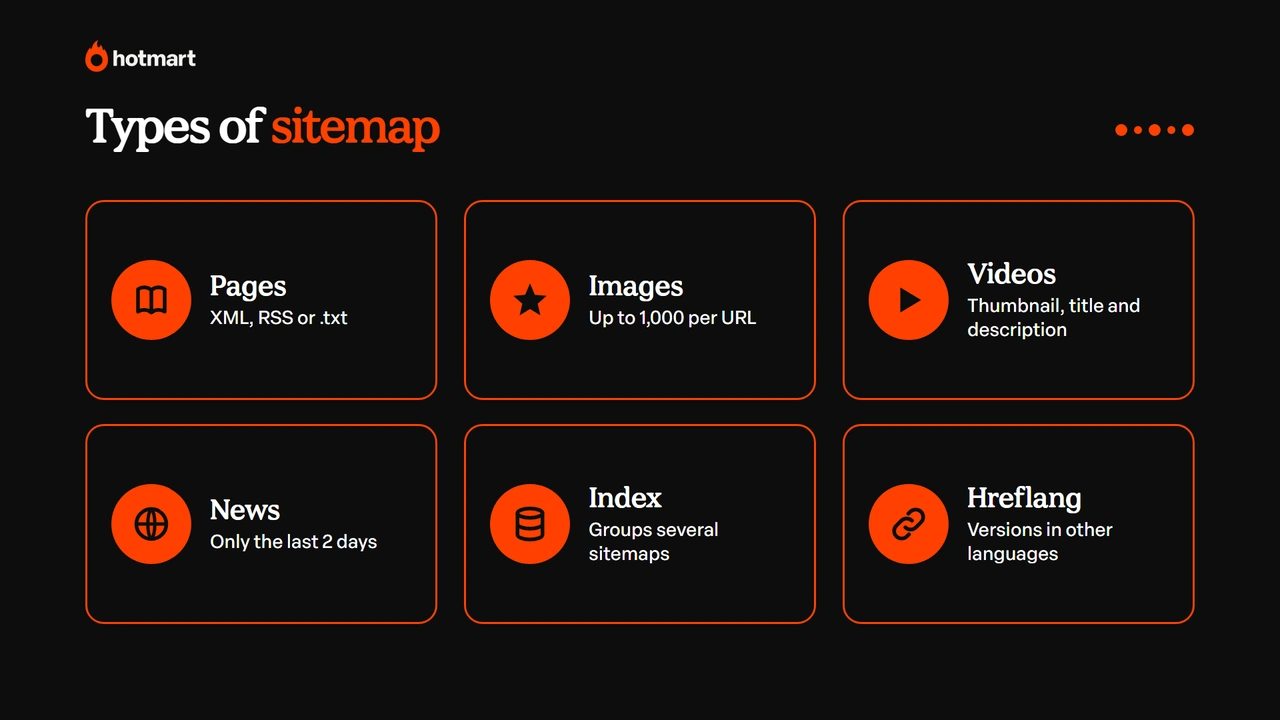
The types of sitemaps vary by file format and by the content they describe. Google accepts sitemaps in XML, RSS/Atom and plain text, and XML also has extensions for media and languages. The main types are:
- page sitemap (XML, RSS/Atom or .txt);
- image sitemap;
- video sitemap;
- news sitemap;
- sitemap index;
- sitemap with hreflang (language versions).
Most sites only use a page sitemap, grouped into an index; the other types come in when there’s a lot of media, news or multiple languages.
Page sitemap: XML, RSS/Atom and text
A page sitemap is the standard type: a list of the URLs you want to see on Google. According to Google’s guide to building and submitting a sitemap, it can be an XML file (the most versatile format), an RSS 2.0 or Atom 1.0 feed (which only reports recent URLs) or a .txt file with one URL per line and nothing else.
Image sitemap
An image sitemap is an XML extension that tells search engines where the images on each page are. Each <url> can include up to 1,000 images, marked with the <image:image> and <image:loc> tags, according to the image sitemap documentation. Older tags such as <image:caption> and <image:title> have been deprecated by Google.
Video sitemap
A video sitemap describes the videos hosted on your pages. It requires a thumbnail (video:thumbnail_loc), a title, a description and the URL of the file (video:content_loc) or of the player (video:player_loc), according to the video sitemap documentation. It’s useful if you host lessons, courses or tutorials on your own site, along with these video SEO tips.
News sitemap
A news sitemap is made for news publishers and should only list articles published in the last two days, with up to 1,000 <news:news> tags per file, according to the news sitemap documentation. Blogs and creator websites usually don’t need one.
Sitemap index
A sitemap index is a file that groups several sitemaps under a single address. You use it when the site goes over the limits of one file or when you want to separate posts, pages, products and categories. An index can list up to 50,000 sitemaps, and each site in Search Console can have up to 500 index files, according to the documentation on large sitemaps.
Sitemap with hreflang for multilingual sites
A sitemap with hreflang shows the versions of a page in other languages or countries. Inside each <url>, you list every variation with <xhtml:link rel="alternate" hreflang="...">, including the page itself, according to Google’s guide to localized versions. For Google, declaring hreflang in the sitemap, in the HTML or in the HTTP header has the same effect; you only need to pick one method.
When does a site need a sitemap (and when Google says it doesn’t)?
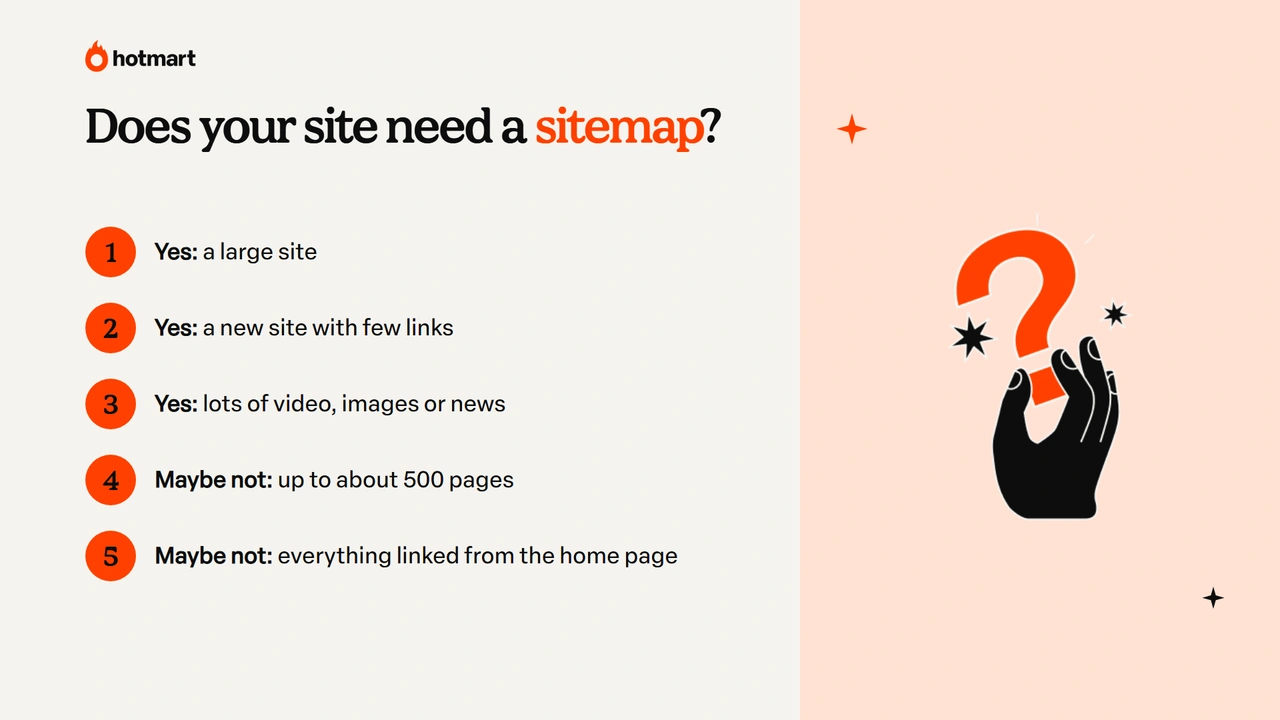
A site needs a sitemap when it’s large, new, poorly linked or rich in media. According to Google’s sitemaps overview, these are the cases where it helps the most:
- large site: it’s hard to make sure every page gets at least one internal link;
- new site with few external links: Googlebot may not reach pages nobody links to;
- lots of video, images or news: Google uses the extra information in the sitemap.
On the other hand, Google says you might not need a sitemap when the site is small (about 500 pages or fewer that should appear in search), when every important page can be reached through links from the homepage and when there are few media files or news pages.
Even so, since most platforms already generate the file automatically, keeping your sitemap active is the safest choice, and the Search Console report is easier to read when you filter only the submitted URLs.
XML sitemap structure: tags, limits and example
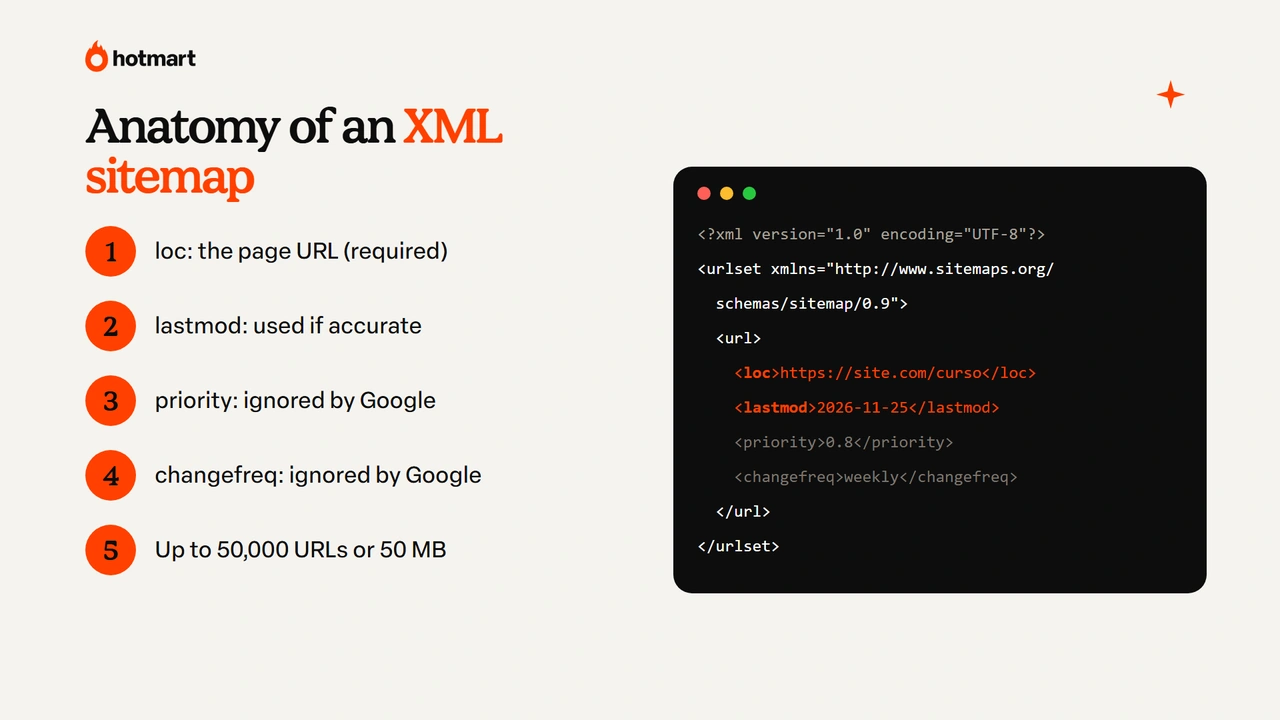
The structure of an XML sitemap is simple: a <urlset> element with the protocol namespace and, inside it, one <url> block per page, with the address in <loc> and, optionally, the last modified date in <lastmod>. Here’s a minimal, valid example:
“xml“
<?xml version="1.0" encoding="UTF-8"?>
<urlset xmlns="http://www.sitemaps.org/schemas/sitemap/0.9">
<url>
<loc>https://www.yoursite.com/</loc>
<lastmod>2026-11-20</lastmod>
</url>
<url>
<loc>https://www.yoursite.com/blog/how-to-create-an-ebook</loc>
<lastmod>2026-11-18</lastmod>
</url>
</urlset>
Sitemap tags: what Google uses and what it ignores
The XML sitemap protocol has four tags, but Google only takes two of them into account. <loc> is required and <lastmod> is used when it’s reliable; <priority> and <changefreq> are ignored by Google, according to the guide to building sitemaps, and also by Bing, according to the Bing Webmaster blog (2025).
| Tag | What it does | Does Google use it? |
|---|---|---|
<loc> |
Full address of the page (required, up to 2,048 characters) | Yes |
<lastmod> |
Date of the last significant change | Yes, if it’s consistent and verifiable |
<changefreq> |
Suggested change frequency | No, it’s ignored |
<priority> |
Relative priority from 0.0 to 1.0 | No, it’s ignored |
The one to watch is lastmod: it should reflect a real change to the content, structured data or links on the page. Changing only the year in the footer or regenerating the whole file every day with today’s date makes Google stop trusting that signal.
Official sitemap limits
The official sitemap limits are 50,000 URLs or 50 MB uncompressed per file, whichever comes first, according to Google and the sitemaps.org protocol. Beyond that, split the URLs into several files and group them in a sitemap index. The file can be gzip compressed, must be UTF-8 encoded and should use absolute, canonical URLs (with https:// and no tracking parameters).
How to create a sitemap
Creating a sitemap today rarely requires code: most platforms generate the file on their own and update it with every new post. The path depends on where your site was built:
- WordPress: native sitemap or one from an SEO plugin, such as Yoast or Rank Math;
- Wix and Shopify: automatic sitemap at
/sitemap.xml; - Google Sites: no editable sitemap file;
- custom or static sites: sitemap generators or manual creation.
Before creating anything, open yoursite.com/sitemap.xml and yoursite.com/robots.txt in your browser. In many cases, the sitemap already exists and you only need to submit it to Search Console.
How to create a sitemap in WordPress
WordPress has generated a native sitemap since version 5.5, released in 2020, at yoursite.com/wp-sitemap.xml. According to the official WordPress announcement, it includes public posts, pages, categories and authors, with up to 2,000 URLs per file, and it’s automatically declared in robots.txt.
If you use an SEO plugin, the plugin’s sitemap usually replaces the native one:
- Yoast SEO: turn it on under Yoast SEO > Settings > Site features > XML sitemaps; the index lives at
yoursite.com/sitemap_index.xml, according to the Yoast help center; - Rank Math: enable the Sitemap module under Rank Math > Dashboard > Modules and choose what goes in under Sitemap Settings; the index is also at
/sitemap_index.xml, according to the Rank Math knowledge base.
Use only one sitemap generator at a time, so you don’t submit duplicate files. And one important detail: if “Discourage search engines from indexing this site” is checked under Settings > Reading, the native sitemap is turned off. To compare Yoast, Rank Math and other options, see our list of WordPress plugins.
Sitemap on Wix and Shopify
Wix and Shopify generate the sitemap automatically at yoursite.com/sitemap.xml, already set up as an index of several files. On Wix, the sitemap updates with every change to the site and, according to the Wix help center, it’s submitted to Google automatically when you complete the SEO Setup Checklist. If you’re still choosing a platform, our guide on how to create a website with AI compares the main builders.
On Shopify, the index includes separate sitemaps for products, collections, pages and blog posts, and the Shopify help center points out that the store has to be out of private mode for Google to read the file.
Sitemap on Google Sites
Google Sites doesn’t offer a sitemap file you can edit or submit. Automatic generation was removed from Google’s documentation in March 2021, according to Search Engine Roundtable. Since sites built with Google Sites tend to be small, the way to go is to take care of the menu and internal links and use the Search Console URL Inspection tool, as we show in our guide on how to create a Google Site.
Sitemap generators and manual creation
For hand-coded sites, static HTML or frameworks such as Next.js and Astro, there are three ways to create a sitemap:
- online generators, which crawl the site and deliver the XML ready to upload to the root;
- crawling tools, such as Screaming Frog SEO Spider, which export the sitemap after analyzing the pages;
- automatic generation in code, with libraries from the framework itself that build the sitemap on every build.
Google recommends writing a sitemap by hand only for sites with a few dozen URLs; beyond that, generate the file automatically, because an online generator creates a snapshot of that moment and every new page means uploading the file again.
How to submit a sitemap to Google Search Console
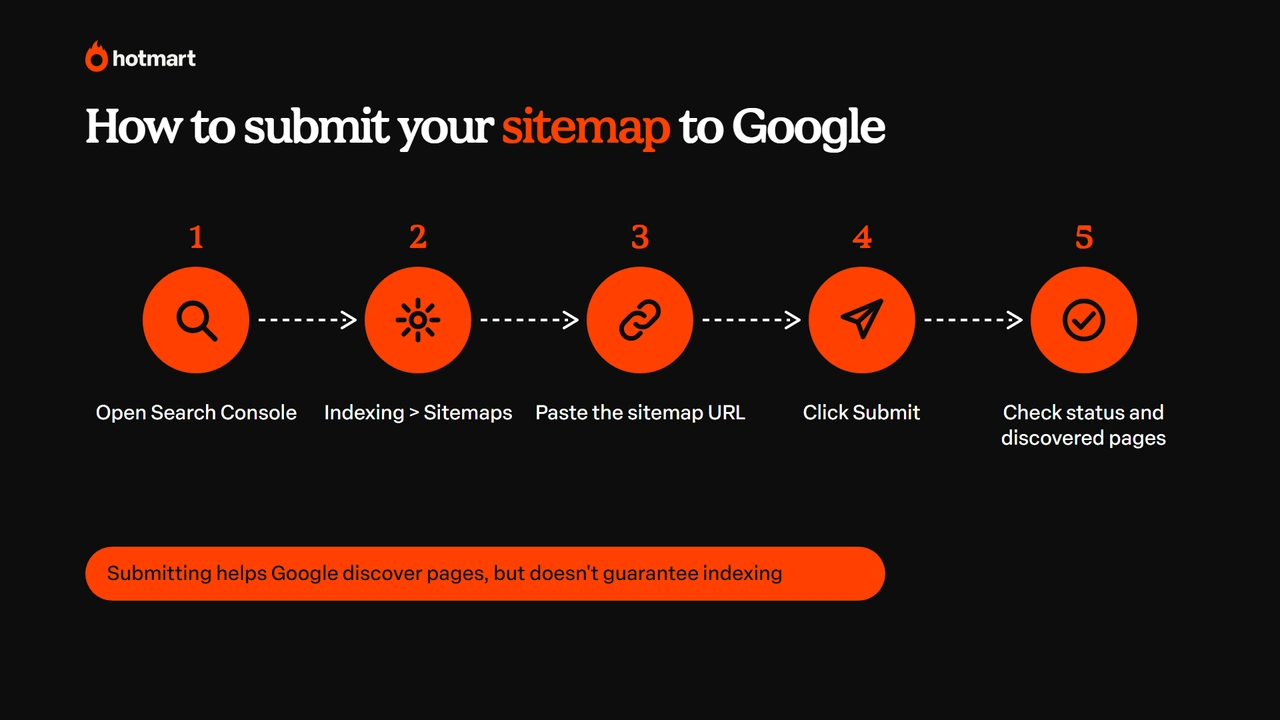
Submitting a sitemap to Google Search Console takes less than a minute, as long as the site is already verified as a property. The step-by-step process, according to the Search Console Help Center, is:
- sign in to Search Console and choose your site’s property;
- in the side menu, click Indexing > Sitemaps;
- under “Add a new sitemap”, paste the address (for example,
sitemap_index.xml); - click Submit;
- come back a few days later to check the status and the pages discovered.
Submitting the index is enough: Google reads the sitemaps listed inside it on its own. If you haven’t set up the tool yet, our Google Search Console guide shows how to verify your domain and use the other reports.
One change worth knowing about: Google’s old sitemap “ping” (the google.com/ping?sitemap= address) has been retired. The Google Search Central announcement from June 2023 explains that most of those submissions were spam. Today, the official routes are Search Console, the Search Console API and robots.txt.
How to declare your sitemap in robots.txt
Declaring your sitemap in robots.txt means adding a line with the full address of the file, anywhere in the robots.txt file:
“
Sitemap: https://www.yoursite.com/sitemap_index.xml
This line works for every search engine that reads robots.txt, can appear more than once and is usually added automatically by WordPress and SEO plugins. Just make sure no Disallow rule blocks the sitemap or the pages listed in it.
How to submit your sitemap to Bing and use IndexNow
Submitting your sitemap to Bing is done in Bing Webmaster Tools, in the Sitemaps section, or with the same robots.txt line. According to the Bing Webmaster blog (July 2025), Bing tries to read the sitemap right after it’s submitted and revisits it at least once a day. The same post highlights that the sitemap also helps content reach Bing’s AI answers, such as those in Microsoft Copilot.
IndexNow is an open protocol that lets a site notify search engines instantly when a URL is created, updated or deleted. Bing, Yandex, Naver, Seznam.cz, Yep and Amazon take part, according to the official IndexNow site; Google isn’t on the list. Plugins such as Rank Math (Instant Indexing feature) already handle these submissions, and Bing recommends using a sitemap and IndexNow together: one ensures coverage and the other, speed.
How to read the Search Console Sitemaps report
The Search Console Sitemaps report shows each submitted file, the submission date, the last read date, the status and the number of pages and videos discovered. The three possible statuses, according to the Help Center, are:
- Success: Google read the file without errors;
- Has errors: the file was partly read, but some entries have problems;
- Couldn’t fetch: Google couldn’t download the file.
A “Success” status doesn’t mean every page was indexed. For that, open the Page indexing report and use the “All submitted pages” filter, which shows only the URLs in your sitemaps.
Common sitemap errors and how to fix them
The most common sitemap errors in Search Console have known causes and simple fixes. Here are the main ones:
| Error or status | What it usually is | How to fix it |
|---|---|---|
| Couldn’t fetch | Wrong address, 404 page, robots.txt block, login required or server error | Open the sitemap in your browser and test the URL with the URL Inspection tool |
| URL not allowed | URLs from another domain or from a level above the sitemap’s folder | Keep the sitemap at the root and list only URLs from the same site |
| Path mismatch: Missing www / Includes www | Sitemap uses a different version of the domain than the property | Use the same version of the domain (with or without www) everywhere |
| Invalid date | lastmod not in W3C format |
Use YYYY-MM-DD or date and time with a time zone |
| Parsing error / Unsupported format | Malformed XML or an unescaped character (such as &) |
Validate the XML and replace & with & |
| Empty sitemap | File with no URLs | Check whether the plugin is including the right content types |
In the Page indexing report, two statuses confuse a lot of people. “Discovered – currently not indexed”: Google knows the URL but hasn’t crawled it yet. “Crawled – currently not indexed”: Google visited the page and hasn’t indexed it for now, which usually has to do with quality or duplication, not with the sitemap. In both cases, resubmitting the sitemap won’t fix it; the way forward is to improve the page and the internal links pointing to it.
Sitemaps, AI and llms.txt: what changes
Sitemaps are still useful in the age of AI search, because generated answers depend on search engine indexes. According to Google’s page on AI features and your website, to appear in AI Overviews and AI Mode a page only needs to be indexed and eligible to be shown with a snippet. On Bing, the 2025 message is the same: a sitemap with an accurate lastmod plus IndexNow keeps content fresh in AI answers too.
llms.txt, on the other hand, is a proposal, not a standard: a Markdown file at the root of the site (/llms.txt) that summarizes the content for language models, suggested by Jeremy Howard of Answer.AI in September 2024, according to the proposal’s website. Google says, on the same page, that you don’t need to create new AI text files to appear in these features. In other words, llms.txt can be a complementary experiment, but it doesn’t replace your sitemap.
Sitemap best practices
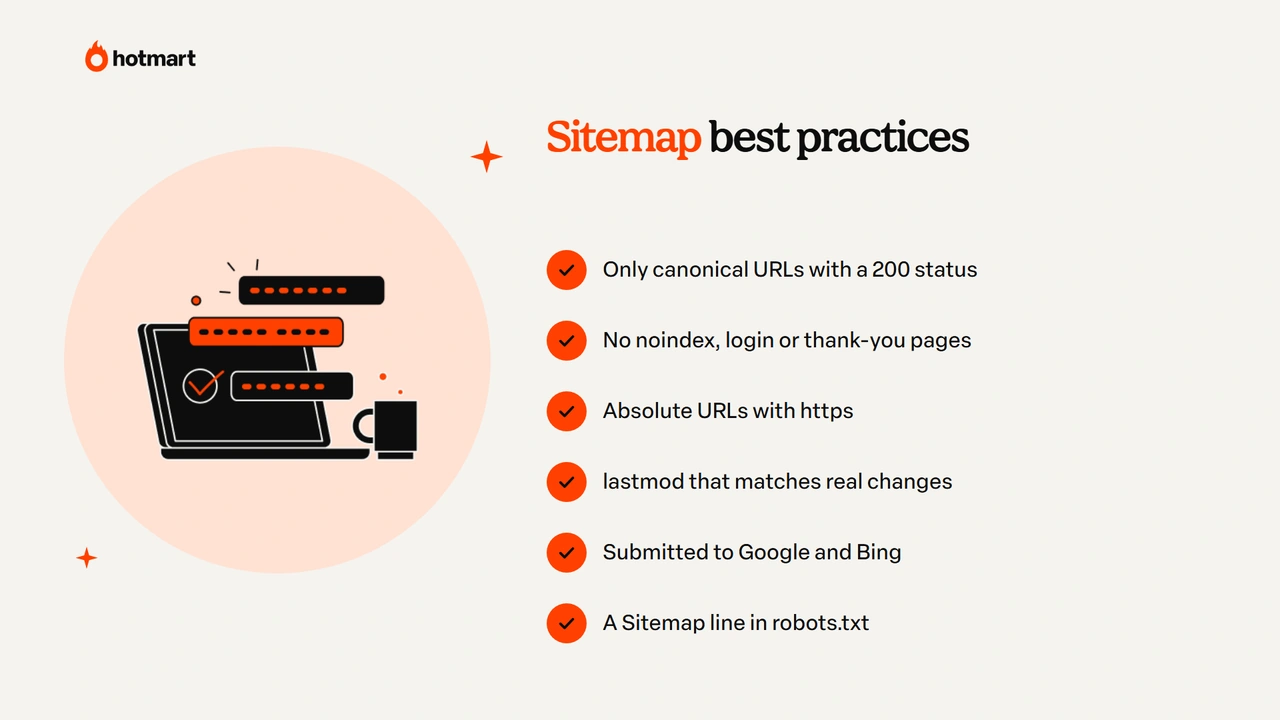
Sitemap best practices come down to one idea: the file should list only the pages you want to see on Google, with accurate data. Use this checklist to review yours:
- include only canonical URLs that return a 200 status and have no
noindex; - remove thank-you, login, cart, internal search and filter result pages;
- use absolute URLs, with
https://and the same version of the domain (with or without www); - keep
lastmodtrue to real content changes; - split large files and use a sitemap index;
- submit the index to Search Console and Bing Webmaster Tools and declare it in robots.txt;
- check the sitemaps report after major changes, such as a migration or a plugin switch.
A clean sitemap also makes diagnosis easier: if a URL is in the sitemap and still isn’t indexed, the problem is the page, not discovery. For the rest of your strategy, see how to grow your organic traffic.
Sitemaps for people who sell digital products
A sitemap is especially useful if you sell digital products and use your website or blog to attract students and customers through organic search. If you publish articles to drive traffic, every new post needs to be discovered quickly, and a sitemap that updates with each post helps with that, as we explain in our step-by-step guide on how to start a blog.
When deciding what goes into your sitemap, think about what you want someone to find on Google:
- include: the homepage, blog posts, pages about you and your products, the sales page and the landing pages you want to rank;
- leave out: thank-you pages, checkout pages, the login-protected members area and paid campaign landing pages you don’t want in organic search.
If you build pages with tools that publish with a domain and hosting included, such as Hotmart Launchpad, which creates a website, a sales page or a members area from a description and already integrates Hotmart’s checkout, the technical infrastructure is handled by the platform. Your job then becomes verifying the domain in Search Console, tracking what gets indexed and taking care of the content.
Ready to check your site’s sitemap?
A sitemap is a simple file that lists your site’s URLs for search engines, and on most platforms it already exists: all that’s left is to check it, clean it up and submit it. Remember the key points: Google uses loc and lastmod and ignores priority and changefreq, each file can hold up to 50,000 URLs or 50 MB, and submitting a sitemap helps with discovery, but it doesn’t guarantee indexing.
Open yoursite.com/sitemap.xml today, submit the index to Search Console and Bing and use the report to find out what hasn’t been indexed yet. With this technical foundation in place, every piece of content you publish has a clear path to reach your audience. 😉 If you want to go further, start with our guide on what SEO is.
Frequently asked questions about sitemaps
Still have questions? Below, we answer some of the most common questions about sitemaps.
How do I know if my site has a sitemap?
Type your domain followed by `/sitemap.xml`, `/sitemap_index.xml` or `/wp-sitemap.xml` in your browser. Another way is to open `yoursite.com/robots.txt` and look for the "Sitemap:" line, which usually points to the file's address.
How long does Google take to read a sitemap?
There's no fixed time frame. Search Console shows the last read date in the Sitemaps report, and Google rereads the file periodically. Submitting a sitemap is a hint, not a request for immediate indexing.
Do I need to resubmit my sitemap for every new post?
No. If the sitemap is generated automatically by WordPress, a plugin or your platform, it updates itself and Google rereads the file from time to time. For an important page, you can request indexing with the Search Console URL Inspection tool.
Does a sitemap improve Google rankings?
Not directly. A sitemap helps Google discover and crawl your pages, but it doesn't guarantee indexing or position: where you rank depends on the quality of the content, its relevance to the search, the page experience and the site's authority.