
How to create a Google Site: a free step-by-step guide to Google Sites, with help from AI
Learn how to create a Google Site: a step-by-step guide to building and publishing it, connecting a custom domain, SEO and Search Console, and using Gemini, Claude and ChatGPT to plan, write and generate code.

What will we see in this post

Want to get a website live today, without paying for hosting or knowing how to code? 🌐 You can create a Google Site with Google Sites, Google’s free tool that builds pages from blocks, right in your browser, using the same account you use for Gmail.
In this guide, you’ll see what Google Sites is, the step-by-step process to create and publish your site, how to connect a custom domain and how to use Gemini, Claude and ChatGPT to plan pages, write copy and generate code snippets. At the end, we cover SEO best practices and when it makes sense to move to another tool. 🚀
| Question | Quick answer |
|---|---|
| What is Google Sites? | Google’s free website builder, which runs in the browser and requires no code |
| Is it free to create a Google Site? | Yes, with a personal Google account you can create, host and publish without paying |
| Can I use a custom domain? | Yes, by connecting a domain bought from a registrar, under Settings > Custom domains |
| Can AI help build the site? | Yes: Gemini exports apps to Google Sites, and Claude and ChatGPT plan, write and generate code |
| Will the site show up on Google? | It can if it’s public, and you can track it with Google Search Console |
What is Google Sites?
Google Sites is Google’s website builder: a free, browser-based tool for building pages by dragging blocks of text, images, video and files, without writing code. It’s part of Google Workspace, the suite that includes Gmail, Drive and Docs, and you’ll find it at sites.google.com.
In practice, creating a Google Site feels a lot like putting together a slide deck: you pick a template, swap the text and images and organize your pages into a menu. The site is saved in Google Drive, several people can edit it at the same time and it gets a public address when you click Publish.
One clarification: Google also used to offer a website builder inside Google Business Profile (formerly Google My Business), but it was shut down. According to the Google Business Profile Help Center, those sites stopped working in March 2024. Today, the official way to create a website with Google is Google Sites.
Pros and cons of creating a Google Site
The pros of creating a Google Site are zero cost, ease of use and integration with Google’s other tools. The cons show up as your project grows: little control over design and SEO and no built-in way to sell. Here they are side by side:
| Google Sites pros | Google Sites cons |
|---|---|
| Free, with hosting included | Few themes and limited layout freedom |
| Block-based editor, no code | Few page-level SEO controls |
| Embeds Docs, Sheets, Forms, YouTube and Maps | No built-in store, checkout or membership area |
| Team editing, just like in Docs | Direct image upload only in .jpg, .png and .gif |
| Custom domain with a security certificate | Embedded code runs inside a block, with limits |
With this table, the decision is simple: for a portfolio, an event page, a school site or a project site, Google Sites works really well. For selling online, it’s usually just the starting point.
How to create a Google Site: step by step
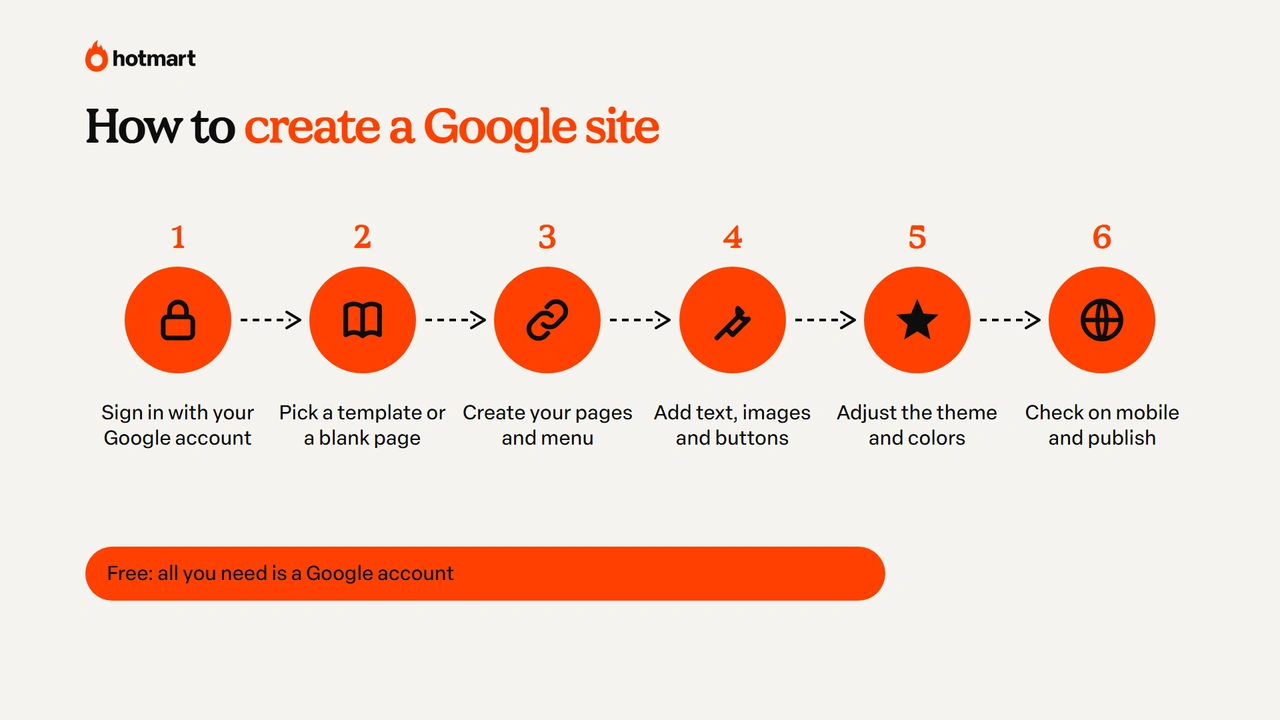
Creating a Google Site takes just a few minutes and follows the official logic of the Google Sites Help Center: pick a template, name the site, add content and publish. We’ve broken that path into 7 steps:
- open Google Sites with your Google account;
- pick a template or start from scratch;
- name your site and set up the header;
- create your pages and menu;
- add text, images, buttons and files;
- customize the theme;
- check it on mobile and publish.
Before you start, have your site’s goal, main copy and a few images ready. That makes every step much faster.
1. Open Google Sites with your Google account
The first step to create a Google Site is to go to sites.google.com with a personal Google account (your Gmail account) or a Google Workspace account. If you’ll use the site for work, it’s worth having an account separate from your personal one, so you don’t mix up files and emails.
2. Pick a Google Sites template or start from scratch
On the Google Sites home screen, under “Start a new site”, you choose between a blank site and ready-made templates, such as portfolio, event, project and small business. If you’re just starting out, a template is the best shortcut: it already has the page structure and you only swap the content. To learn how to make the most of this kind of ready-made structure, see what a template is.
3. Name your site and set up the header
The site name goes in the top-left corner of the editor, in the “Enter site name” field (it’s also the file name in Drive). Right below, in the header, you write the homepage title, choose a background image and can add a logo, which appears in the menu.
4. Create the pages and menu of your Google Site
In the Pages tab on the right, you create the pages of your Google Site, such as “About”, “Services” and “Contact”, and drag one page into another to create submenus. The navigation menu builds itself from that list.
5. Add text, images, buttons and files to Google Sites
In the Insert tab, Google Sites offers text boxes, images, buttons, image carousels, collapsible text and ready-made block layouts. You can also embed Google files (Docs, Sheets, Slides and Forms), YouTube videos, calendars and maps. A tip: direct image upload accepts .jpg, .png and .gif, according to the Help Center; other formats go in through Drive.
6. Customize your Google Sites theme
In the Themes tab, you pick one of the ready-made themes and adjust colors and fonts. You can also build a custom theme with your brand’s colors, text styles and images and reuse it on other sites. If you don’t have brand colors and fonts yet, start with your visual identity.
7. Check it on mobile and publish your Google Site
Before you publish your Google Site, use the preview button to see how it looks on a phone, tablet and computer. Check links, copy and images and only then click Publish in the top-right corner.
How to publish a Google Site and connect a custom domain
Publishing a Google Site means choosing an address and deciding who can see it. A custom domain is optional, but it makes your site look more professional. Here are both processes.
How to publish your site on Google Sites
To publish your site on Google Sites, click Publish, enter the site’s web address and confirm. Without a custom domain, the address follows the format sites.google.com/view/site-name. Then, under Share, next to “Published site”, you choose between Public (anyone can see it) and Restricted (only people you invite), as the Help Center explains.
Every change you make in the editor only shows up for visitors when you publish again. If you don’t want the site to appear in search engines, click the arrow next to Publish, go to Publish settings and select the option that asks public search engines not to display your site. Google itself notes that this is a request, not a guarantee.
How to connect a custom domain to Google Sites
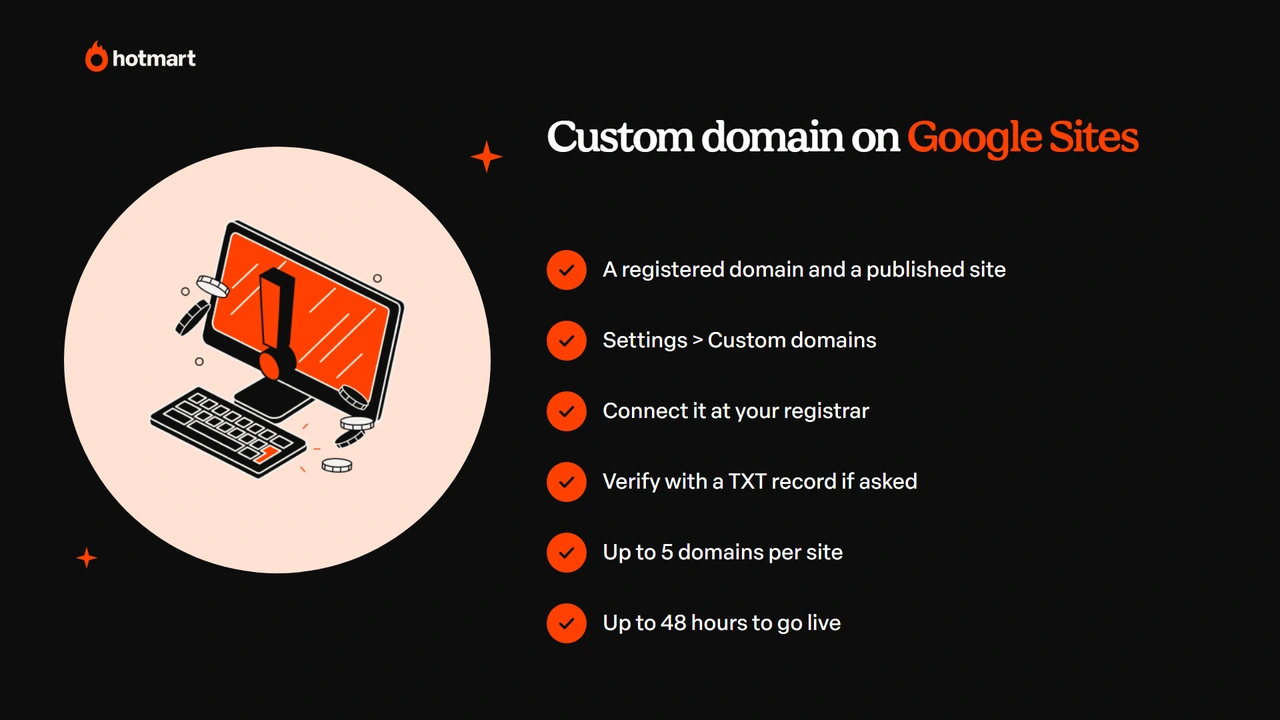
To connect a custom domain to Google Sites, you need a domain that’s already registered and a published site. According to the Google Sites Help Center, here’s the process:
- open the site and go to Settings > Custom domains;
- click Start setup and enter your domain;
- follow the instructions to connect the domain at the registrar where you bought it;
- if Google asks, verify that you own the domain in Search Console, with a TXT record in your DNS.
A few details matter: only the site owner can make this connection, each site accepts up to 5 custom domains, the change can take up to 48 hours to show up and the site needs to be public. If you don’t have an address yet, see how to register a domain.
How to use AI to create a Google Site
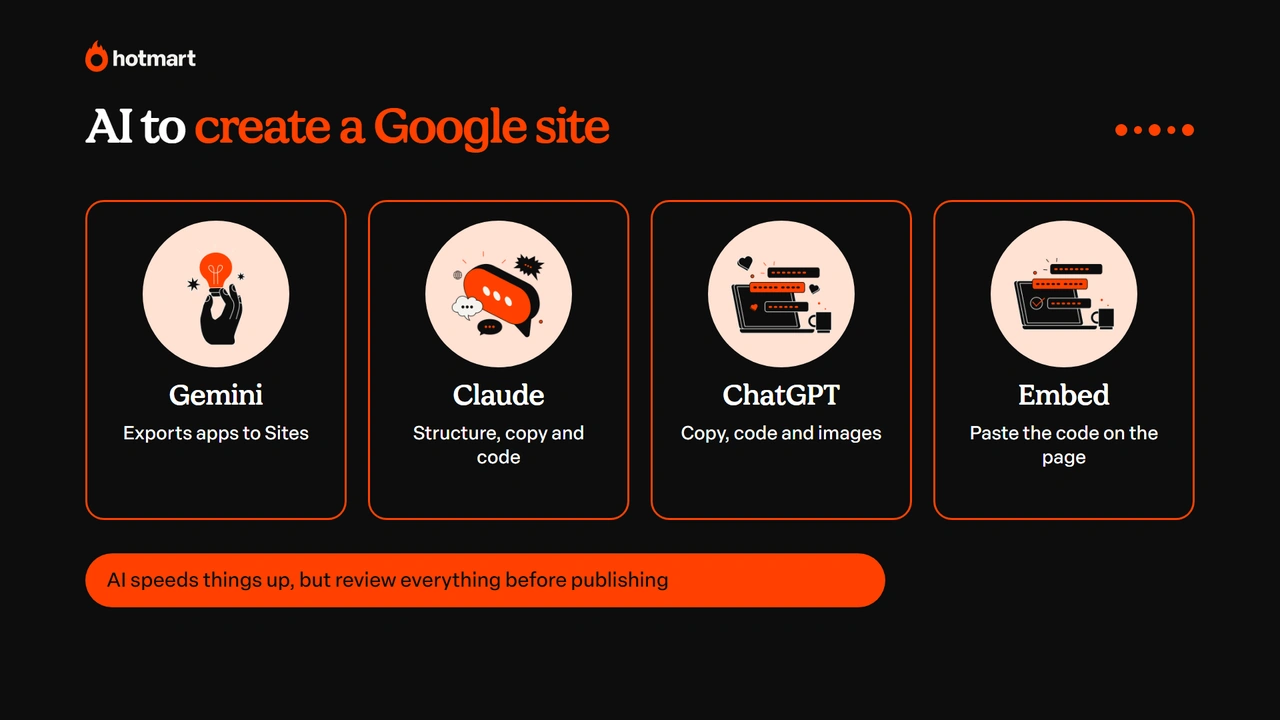
Using AI to create a Google Site means splitting the work: AI plans, writes and generates code snippets, and you assemble and publish in the editor. As of November 2026, we haven’t found an official announcement of a Gemini assistant inside the Google Sites editor; the official integration is exporting apps from Gemini to Google Sites. Here’s what each AI does well:
- Gemini: builds an interactive app in Gemini and sends it to Google Sites in one click;
- Claude: plans the structure, writes the copy and generates HTML and CSS blocks to paste into your site;
- ChatGPT: does the same and also creates images for the banner and sections.
In every case, AI works better with a good request. To go deeper, see what a prompt is and how to structure one.
How to create a Google Site with Gemini
Creating a Google Site with Gemini, as of November 2026, works like this: you build an interactive app in the Gemini app (a calculator, a quiz, an event page) and use Export > Google Sites. According to the official Google Workspace Updates blog, published on October 19, 2026, the app goes into a new private Google Sites draft, stays interactive and can take more content before you publish it.
The feature is available to Google Workspace customers, Workspace Individual subscribers and personal Google accounts with access to the Gemini app, as long as Google Sites is turned on for the user. It’s the most direct way to bring something built with AI into Google Sites, without copying code.
How to create a Google Site with Claude
Creating a Google Site with Claude means using Anthropic’s assistant as your planner and writer, and Google Sites as the place to publish. Claude doesn’t edit Google Sites for you, but it handles four tasks well:
- planning the structure: which pages, in what order and what goes in each section;
- writing the copy: headline, tagline, “about”, FAQs and buttons;
- generating HTML and CSS snippets: a pricing table, a testimonials block or a countdown timer, to paste under Insert > Embed > Embed code;
- reviewing SEO: suggesting page titles, image alt text and keywords.
Claude shows ready-to-use pages and small tools in artifacts, which open next to the conversation. According to the Claude Help Center, they’re available on the Free, Pro, Max, Team and Enterprise plans. Claude doesn’t generate photos; for images, use a stock photo site or another tool. To compare the two assistants, see Claude vs ChatGPT.
How to create a Google Site with ChatGPT
Creating a Google Site with ChatGPT follows the same logic: it plans, writes and generates code, and you put it together in Google Sites. The difference is that ChatGPT also creates images, which are handy for the header banner and section illustrations. In ChatGPT’s canvas, according to the OpenAI Help Center, you can preview HTML code before copying it.
Here are some sample prompts to use in Claude or ChatGPT:
| Goal | Sample prompt |
|---|---|
| Plan the site | I’m a Spanish teacher and I’m going to create a Google Site to promote my online classes. Suggest 4 pages, the sections for each one and the text for the main button |
| Write the copy | Write the homepage copy with a headline of up to 8 words, a supporting sentence, 3 short benefits and a call to action to book a free intro call, in a friendly tone |
| Generate a code block | Create an HTML and CSS block in a single snippet, with 3 testimonial cards, mobile-friendly, in navy blue and yellow, to paste into Google Sites under Embed code |
| Create an image (ChatGPT) | Create a horizontal image for the site header, with a bright study desk, no text, in shades of blue |
| Review SEO | Review this copy and suggest a title for each page and alt text for each image, using the keyword online Spanish classes |
Always review what the AI delivers: double-check facts, prices and links and tweak the copy so it sounds like you.
How to paste AI code into Google Sites
To paste AI-generated code into Google Sites, open the page in the editor and click Insert > Embed > Embed code. Paste the snippet, click Next and then Insert, and publish the site again for the change to show up, as the Help Center explains. JavaScript must be wrapped in script tags and CSS in style tags.
The code appears inside a block that you can resize on the page. That’s why it’s best to use embeds for visual and interactive elements and write your main copy in Google Sites’ own text boxes. That makes it easier to edit and easier to read for people who arrive from Google.
If your project calls for an entire site built by AI, not just blocks, check out the tools in our guide on how to create a website with AI and the idea behind vibe coding.
Google Sites best practices and SEO
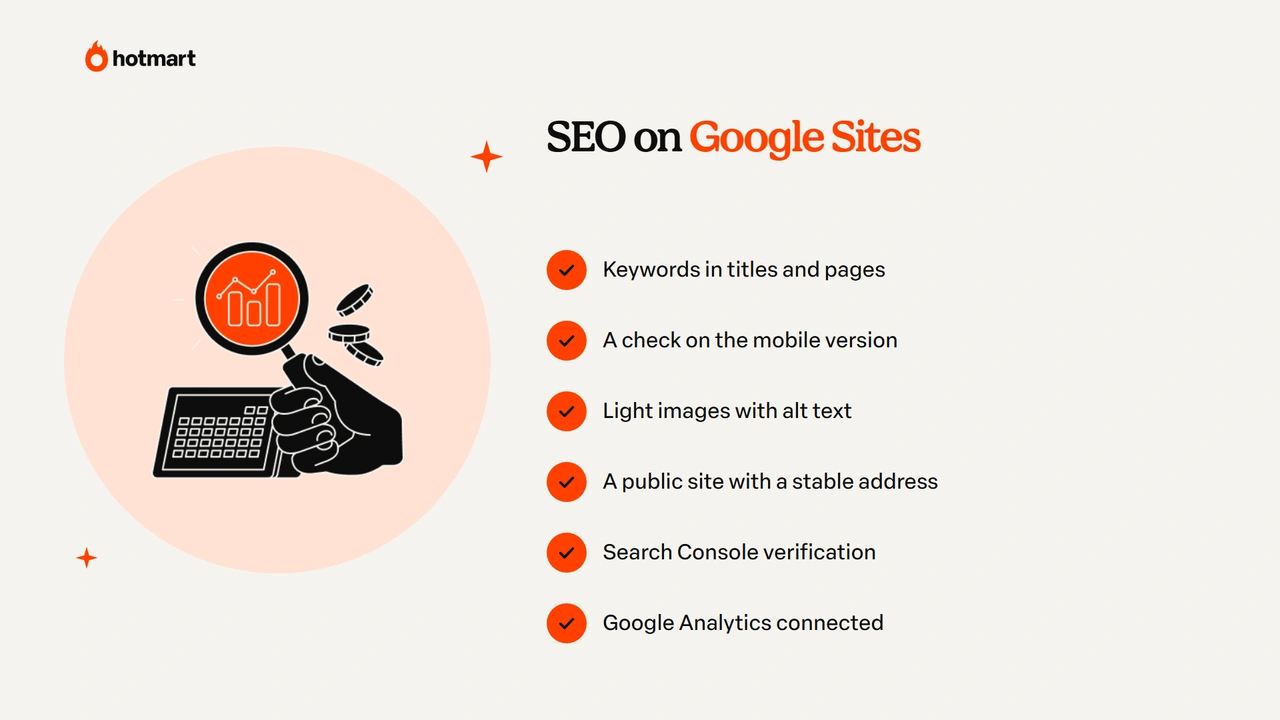
SEO best practices on Google Sites make up for the tool’s limited technical controls: since there are no page-level SEO fields, content and organization are what make the difference. These are the main things to watch:
- title and copy with your keyword: use the term people search for in the homepage title, section headings and page names;
- mobile first: check every page in mobile preview, with short copy and buttons that are easy to tap;
- lightweight images: shrink file sizes before uploading, so the page loads fast;
- accessibility: add alt text to images, use contrast between text and background and keep headings in order, the basics of web accessibility;
- public site and stable address: renaming pages changes their address, so settle on page names before you share the site.
Once that’s done, you need to tell Google the site exists. In Google Search Console, verifying a Google Sites site is automatic when you sign in with the same account that created it. According to Search Console Help, sites without a custom domain use the Google Analytics method, and sites with a custom domain use the HTML tag (or the TXT record for a domain property). To connect Google Analytics, go to Settings > Analytics in Google Sites and paste your property ID; data shows up within 24 hours, according to the Help Center.
After verification, use Search Console’s URL Inspection tool to request indexing for your homepage and keep an eye on impressions and clicks over the following weeks.
Google Sites ideas
Google Sites works best for projects that need to inform, organize and pull links together, without selling directly on the page. Here are some ideas for using the site you create with Google:
| Type of site | What to include |
|---|---|
| Portfolio | Work samples with images, client testimonials and a contact button |
| Course or class page | Overview, schedule, materials in Drive and a sign-up link |
| Event | Date, location on Maps, agenda, registration form and embedded calendar |
| School or class group | Announcements, calendar, assignments and videos organized by page |
| Link in bio | One page with your channels, content and products as buttons |
| Internal project | Your team’s documents, spreadsheets and processes in one place |
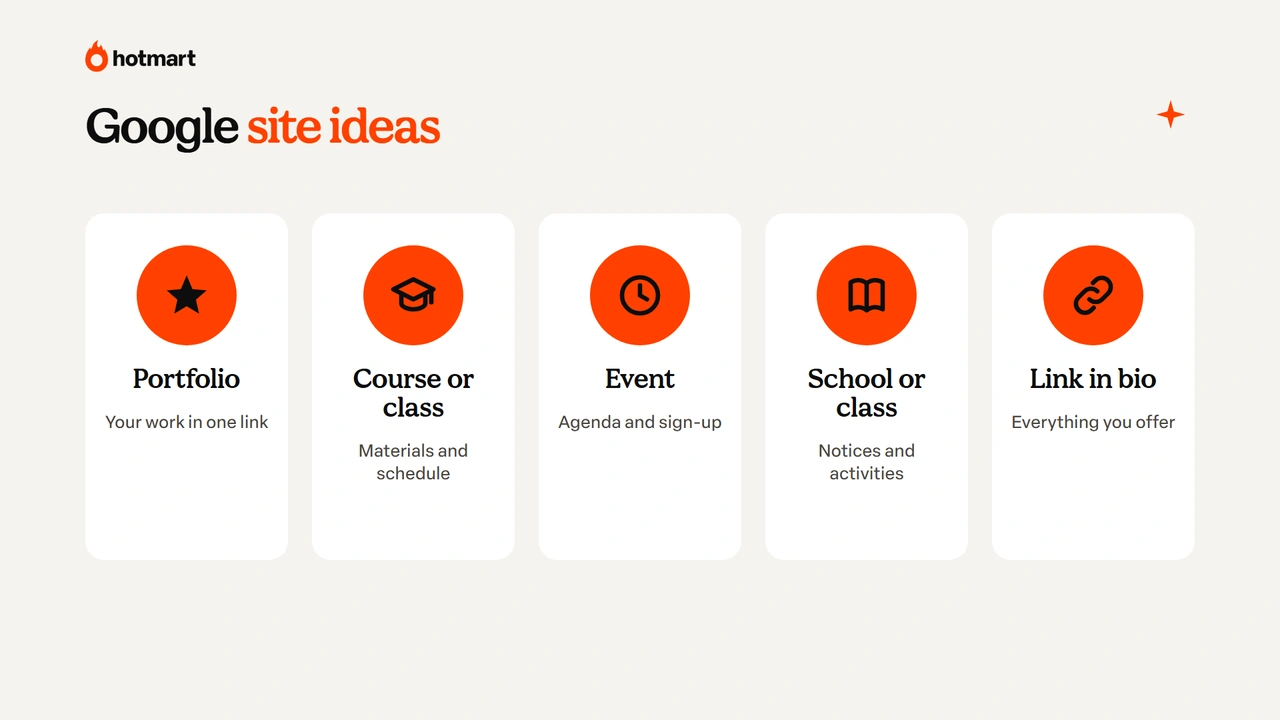
Notice that, in almost every case, a Google Sites site sends people somewhere else when it’s time to act: a form, a booking link or a checkout page. That says a lot about when it stops being enough.
When Google Sites isn’t enough
Google Sites isn’t enough when your site needs to sell, capture leads at scale or give you tighter control over design and SEO. It has no checkout, cart, membership area or automation tools, and the design is tied to its themes. In those cases, there are three common paths:
- full website builders, like the ones in our guide on how to create a website, with more themes, a blog and SEO controls;
- landing pages, when the goal is a single conversion, such as a sign-up or a sale (see how to create a landing page);
- AI tools that publish with built-in sales, for people who sell a course, an ebook or coaching.
The third path is where Hotmart Launchpad comes in: it builds a website, sales page, membership area or app from a plain-language description and publishes it in one click, with domain, hosting and Hotmart checkout included (more than 40 payment methods and 22 currencies). There’s a free plan to try it out, with 15 credits per month and 1 published app.
The right choice depends on your goal: Google Sites handles the showcase and organization well, and the other tools step in when the page needs to close the sale.
Ready to create your Google Site?
Creating a Google Site is free, fast and requires no code: pick a template, build your pages, adjust the theme, check it on mobile and publish, with a custom domain if you want one. AI speeds up everything, from planning pages to writing copy and code blocks, and Gemini can already send ready-made apps to Google Sites.
Start simple, with a page that answers what your audience is looking for, and connect Search Console to track results. When your site needs to sell, you already know the next step. 😉
Frequently asked questions about how to create a Google Site
Still have questions? Below, we answer some of the most common questions about how to create a Google Site.
Is Google Sites free?
Yes. With a personal Google account, you can create, host and publish your site on Google Sites without paying. The only optional cost is a custom domain, which you buy from a registrar.
Can I use a custom domain with Google Sites?
Yes. Under Settings > Custom domains, you connect a domain that's already registered, with up to 5 domains per site. The change can take up to 48 hours and the site needs to be public.
Will my Google Sites site show up on Google?
It can, as long as the site is public and you haven't asked to hide it from search engines. To speed things up and track it, verify the site in Google Search Console and request indexing for the homepage.
Can I sell on Google Sites?
Not directly, because Google Sites has no checkout or cart. You can add buttons that lead to an external payment page or use a tool with built-in checkout when selling is your main goal.
Does Gemini build the site for me in Google Sites?
Not exactly. Since October 2026, you can build an interactive app in the Gemini app and export it to a Google Sites draft, but the other pages, the copy and publishing are still up to you in the editor.